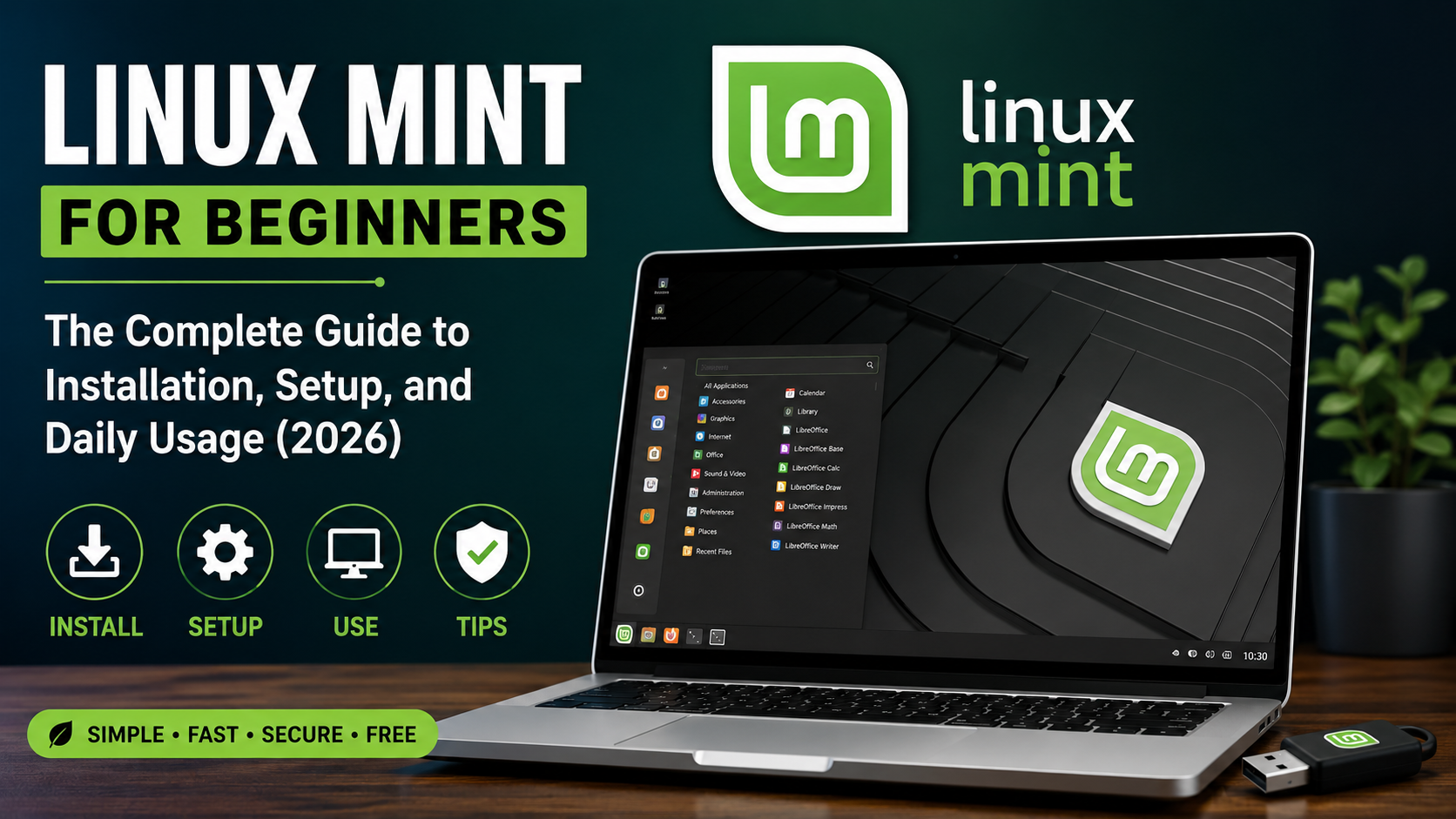
If you’re looking for a free, secure, and beginner-friendly operating system, Linux Mint is one of the best choices available today. Whether you’re switching from Windows, reviving an old laptop, or simply curious about Linux, Mint offers a familiar interface that makes the transition smooth and enjoyable.
Unlike many Linux distributions that require extensive technical knowledge, Linux Mint focuses on simplicity, stability, and ease of use. It comes with everything most users need right out of the box, including a web browser, office suite, media player, and essential utilities.
In this guide, you’ll learn everything you need to know—from installation to daily usage—so you can start using Linux Mint with confidence.
What Is Linux Mint?
Linux Mint is a free and open-source operating system based on Ubuntu. It is designed to provide a comfortable desktop experience for beginners and experienced users alike.
One of its biggest strengths is the Cinnamon desktop environment, which closely resembles the traditional Windows layout. You’ll find a Start Menu, taskbar, notification area, and desktop shortcuts, making navigation intuitive.
Because Linux Mint is built on Ubuntu’s long-term support (LTS) releases, it benefits from years of security updates and software compatibility while maintaining excellent stability.
Why Choose Linux Mint?
Many users switch to Linux Mint because it strikes the perfect balance between performance and simplicity.
Some of its biggest advantages include:
- Completely free to use
- No mandatory subscriptions or license fees
- Fast performance on older hardware
- Strong privacy compared to many commercial operating systems
- Thousands of free applications
- Excellent security
- Regular updates
- Friendly community support
Unlike many operating systems that constantly display advertisements or encourage online accounts, Linux Mint lets you stay in control of your computer.
System Requirements
Before installing Linux Mint, make sure your computer meets these minimum specifications.
Minimum Requirements
- 2 GB RAM
- 20 GB storage
- Dual-core processor
- USB drive (8 GB or larger)
Recommended Requirements
- 4 GB RAM or more
- SSD storage
- Intel Core i3/Ryzen 3 or higher
- 100 GB free storage
Even laptops that are eight to ten years old often run Linux Mint surprisingly well.
How to Install Linux Mint
Installing Linux Mint is easier than many people expect.
Step 1: Download Linux Mint
Visit the official Linux Mint website and download the latest Cinnamon Edition ISO.
Always verify the download if possible to ensure the file hasn’t been corrupted.
Step 2: Create a Bootable USB
Use software such as Rufus (Windows), Balena Etcher, or Ventoy to create a bootable USB drive.
Insert an empty USB drive and write the ISO image.
Step 3: Boot from USB
Restart your computer.
Open the boot menu (usually F12, Esc, or F9 depending on your manufacturer) and select the USB drive.
Linux Mint allows you to test the operating system before installing it.
Step 4: Start Installation
Double-click the Install Linux Mint icon on the desktop.
The installer guides you through:
- Language selection
- Keyboard layout
- Time zone
- User account
- Password
- Disk partitioning
If you’re replacing Windows completely, choose Erase disk and install Linux Mint.
If you want dual boot, select the appropriate partitioning option carefully.
Step 5: Restart
Once installation finishes, remove the USB drive and restart the computer.
Congratulations—you’ve successfully installed Linux Mint.
First Things to Do After Installation
A fresh installation only takes a few minutes to prepare for daily use.
Update the System
Open Update Manager and install all available updates.
Keeping your system updated improves security and fixes bugs.
Install Multimedia Codecs
Linux Mint usually offers multimedia codecs during installation.
If you skipped this step, install them afterward to ensure smooth playback of videos and audio files.
Configure Timeshift
Timeshift is one of Linux Mint’s best features.
It automatically creates system snapshots that let you restore your computer if something goes wrong after an update or software installation.
Think of it as a restore point for Linux.
Enable Firewall
Linux Mint includes a firewall that is easy to activate.
Open Firewall Configuration and enable it.
This adds an extra layer of protection without affecting everyday usage.
Installing Applications
One of Linux Mint’s strengths is its Software Manager.
Instead of searching random websites for software, you can safely install applications from trusted repositories.
Popular software includes:
- Google Chrome
- Firefox
- VLC Media Player
- Spotify
-
Share this post:

Comments (0)
No comments yet. Be the first to comment!